A tour of the screens

Pick a capability and click the steps; click an image to enlarge it. Screens are shown with sample company data; the application interface is in Turkish.

VALUEX · CSM
CSM — Open a project
CSM · Explore

Screens are shown with sample company data; the application interface is in Turkish.

CSM · Map

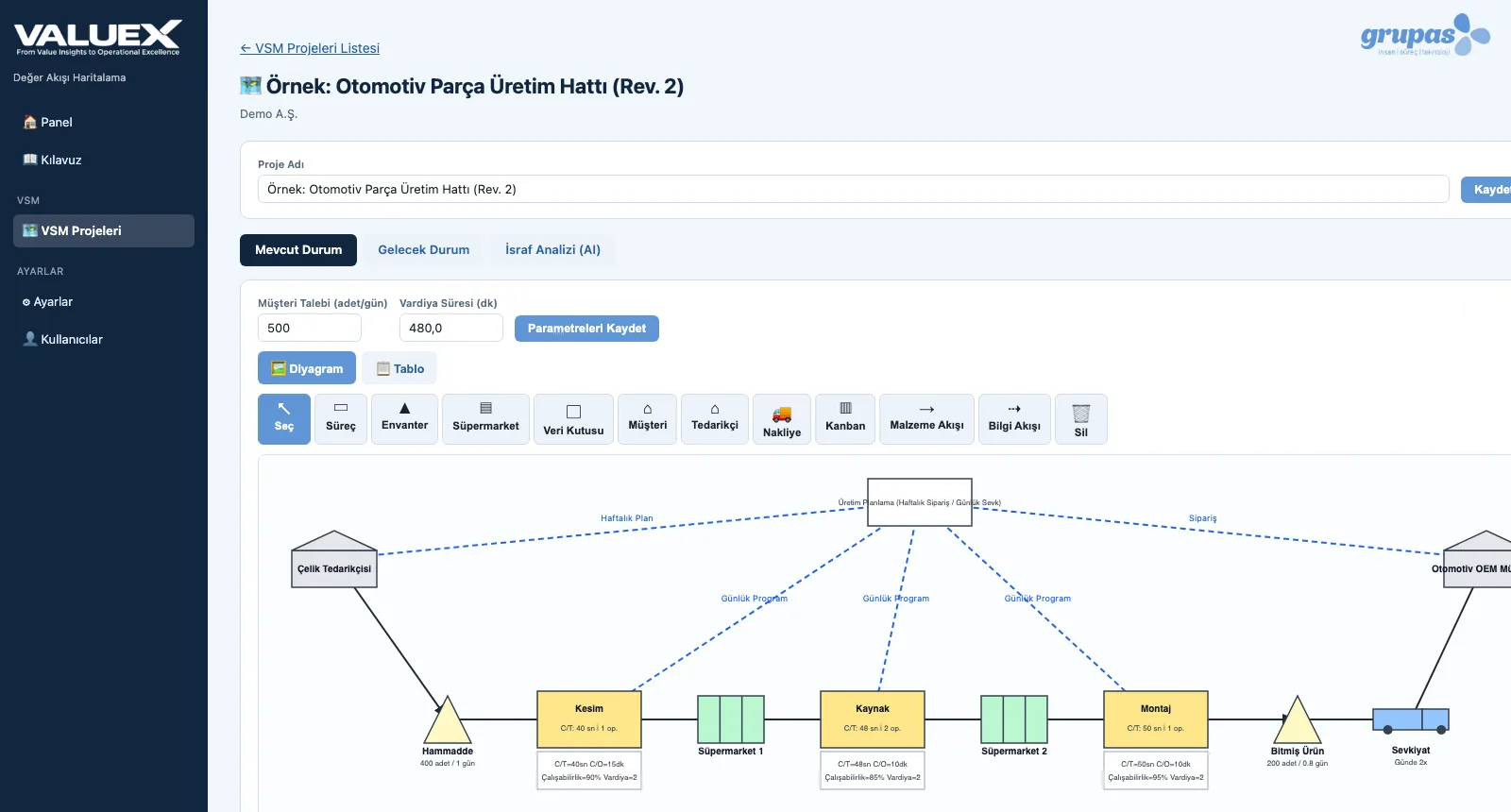
Current-State Map

Build your current-state map in a few steps — from the project to the symbols and shop-floor data.
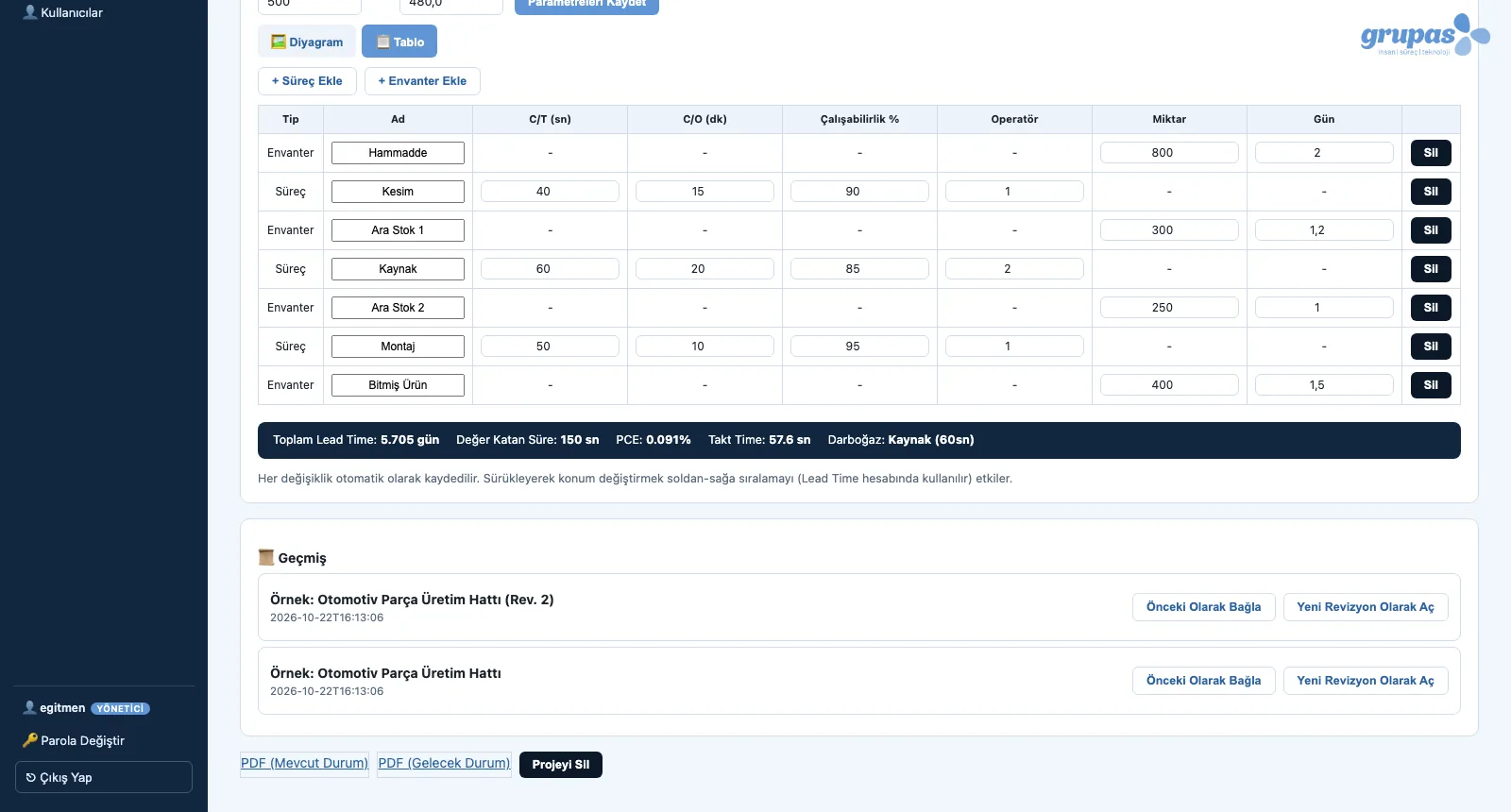
CSM — Open a project
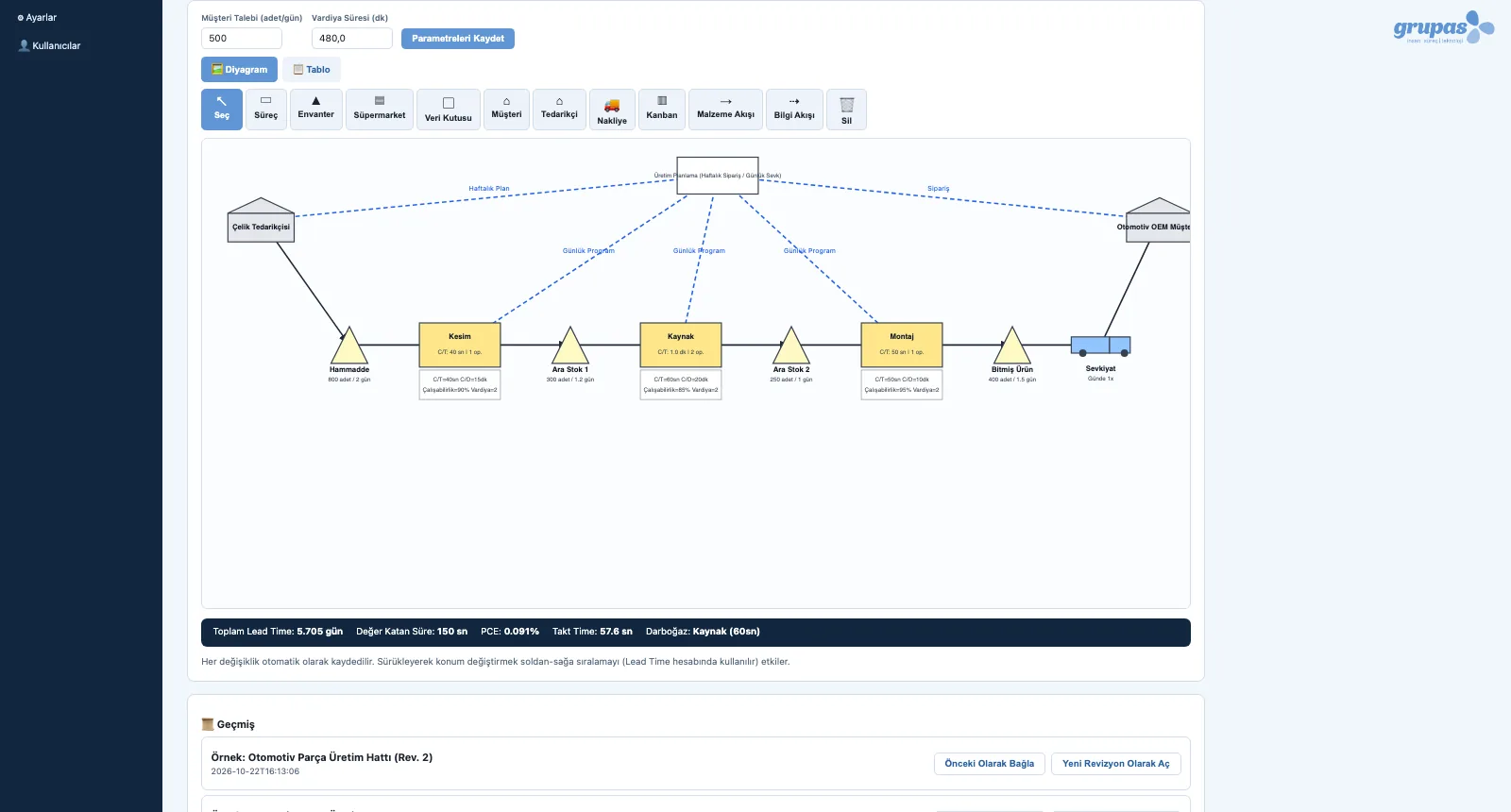
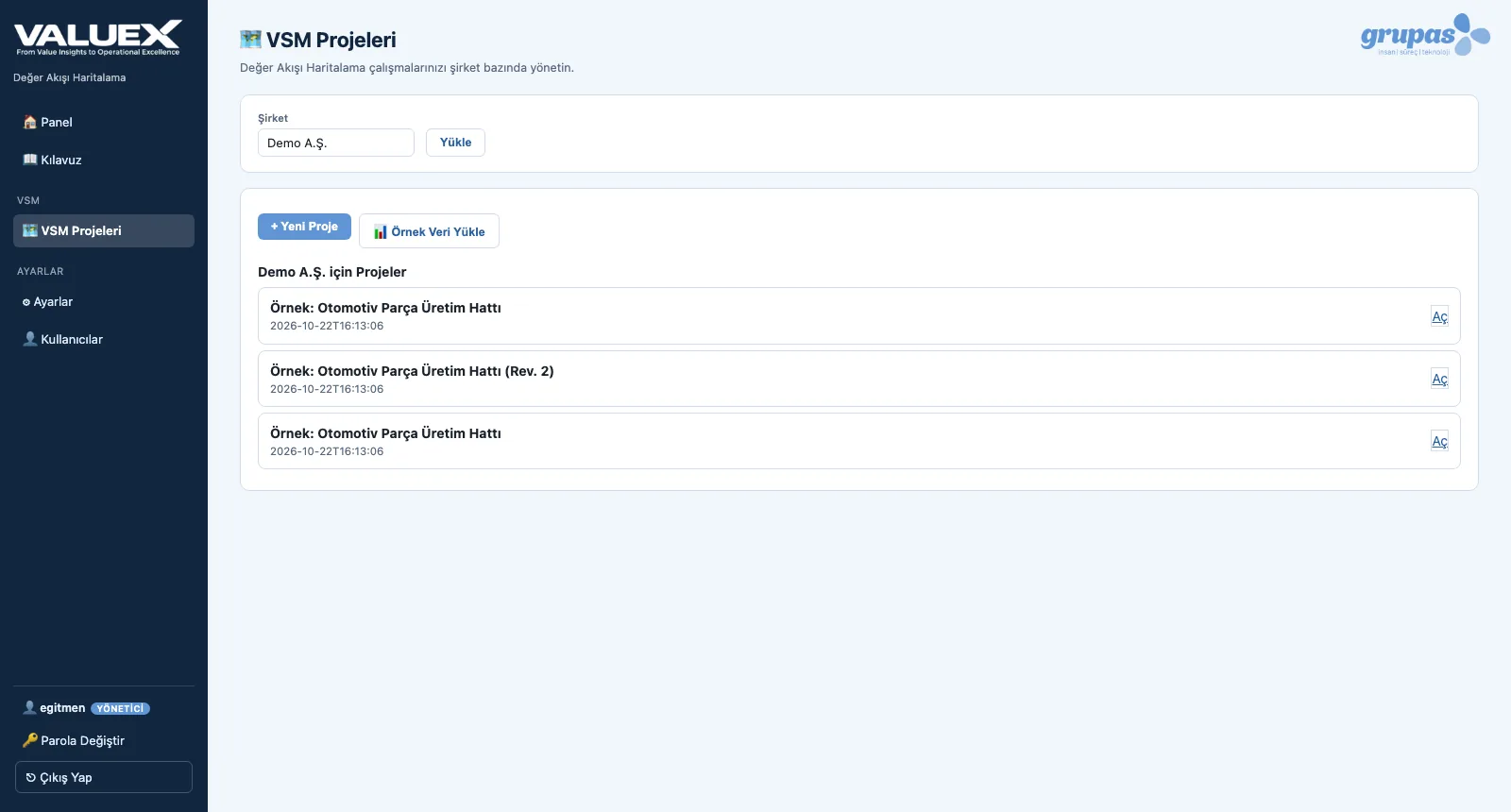
1. Open a projectEnter the company name; open a new VSM project or start from sample data. Each company's work is listed separately.
CSM — Draw the flow
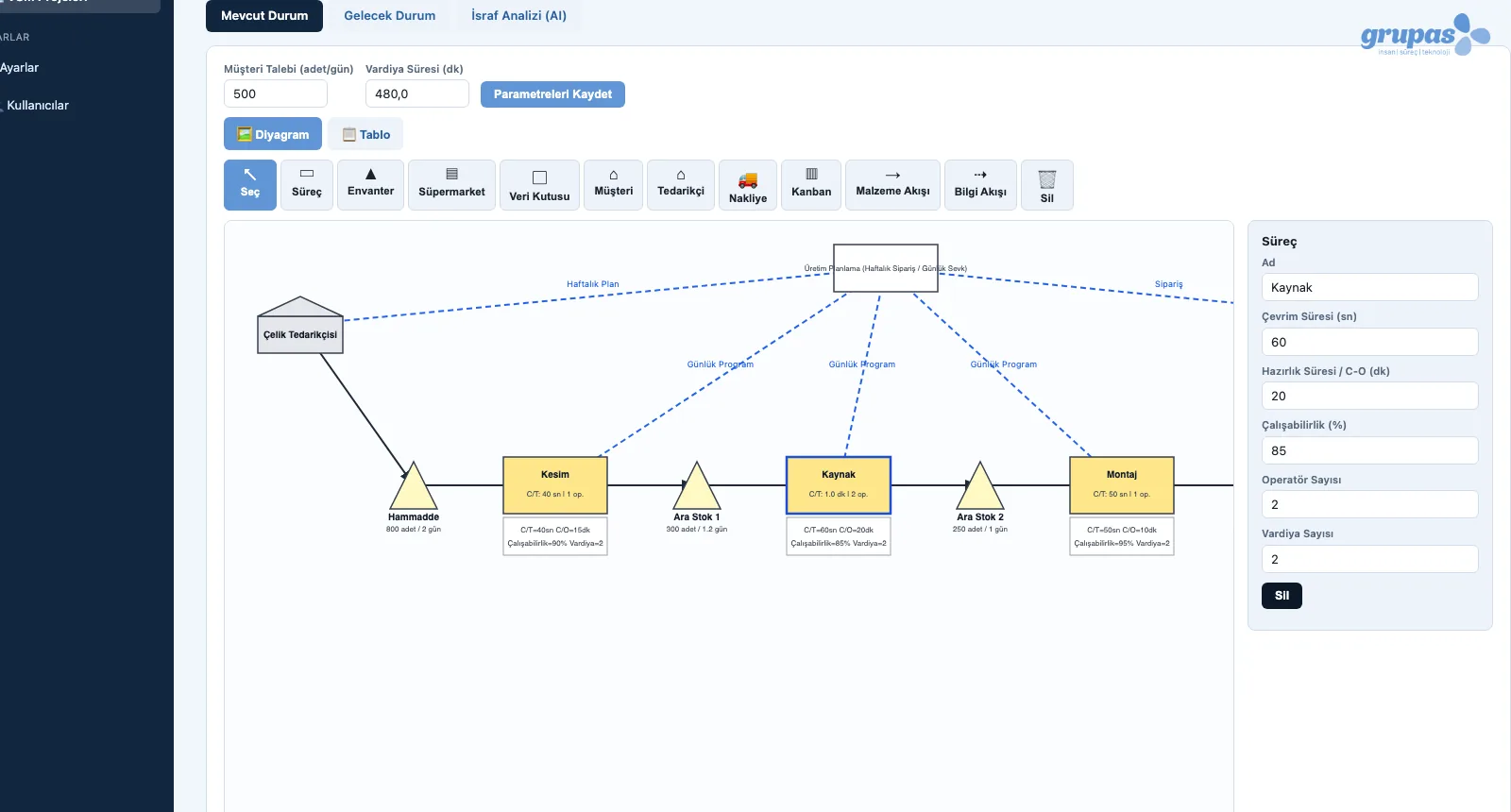
2. Draw the flowPlace supplier, inventory, process, shipment and customer symbols; connect the material and information flow arrows.
CSM — Enter shop-floor data
3. Enter shop-floor dataClick a symbol; enter cycle time, changeover, uptime, operators and shifts in the property panel.
CSM — Edit in the table
4. Edit in the tableSwitch to the table view; edit process and inventory rows like a classic table — the map updates at the same time.

CSM · Explore

KPI · Measure

Flow Metrics

See the numeric picture of the flow together with the map.
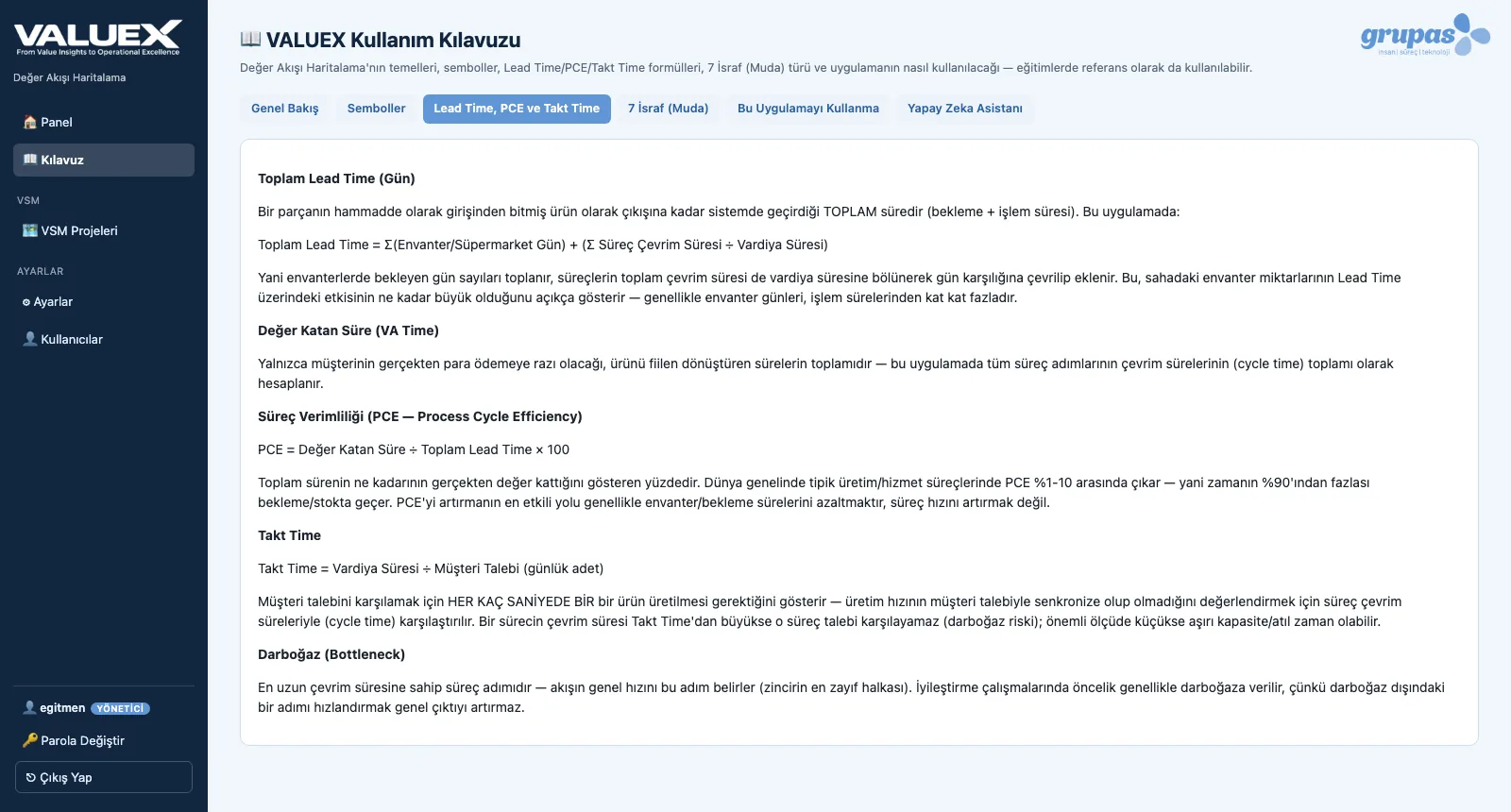
KPI — Enter demand and shift time
1. Enter demand and shift timeEnter daily customer demand and shift time; takt time and day conversions follow from them. The metrics bar sits right under the map.
KPI — See the formulas
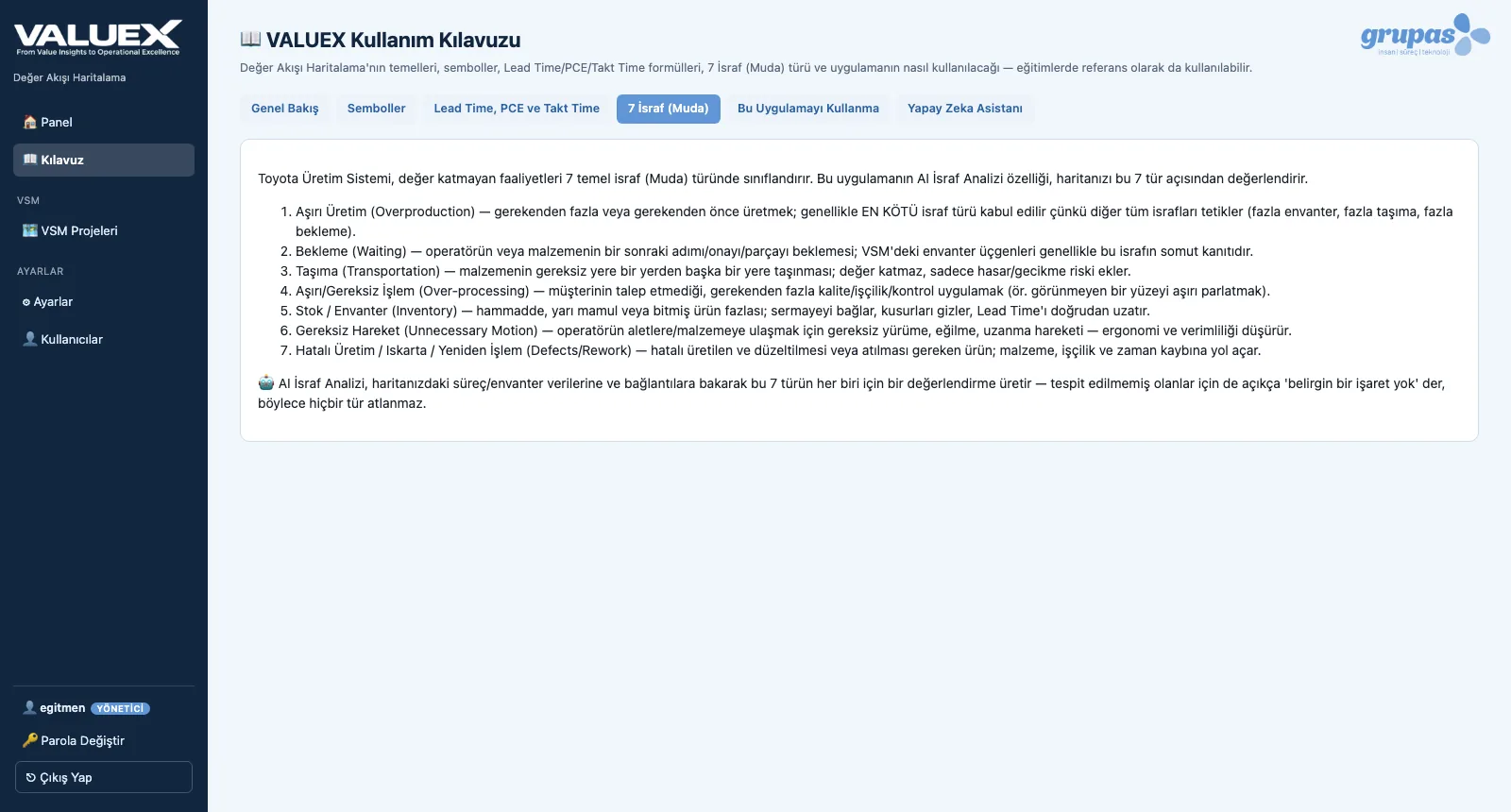
2. See the formulasLead time, value-added time, PCE, takt time and bottleneck definitions are in the guide; the team knows how it is calculated.
KPI — Compare with the future state
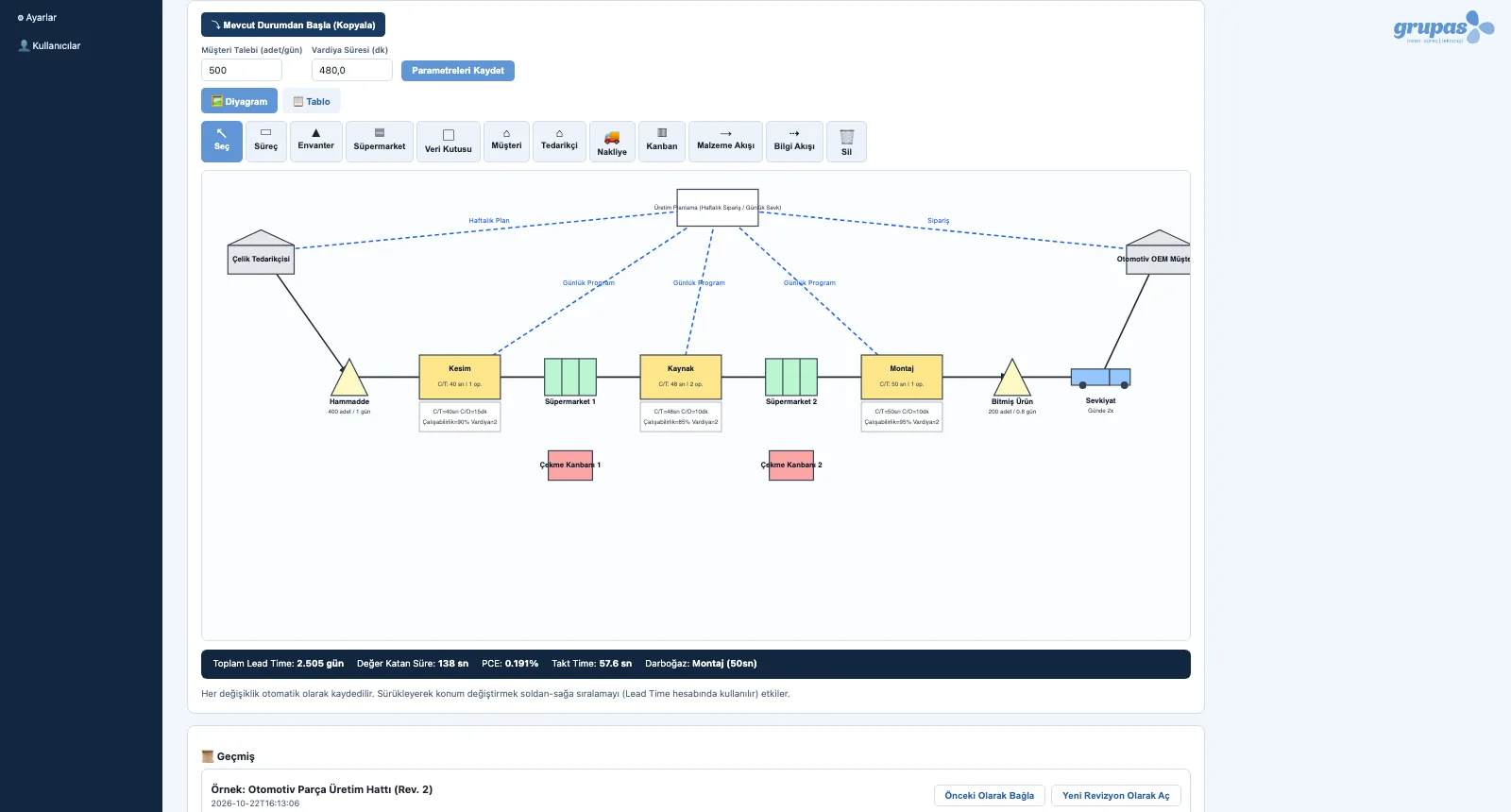
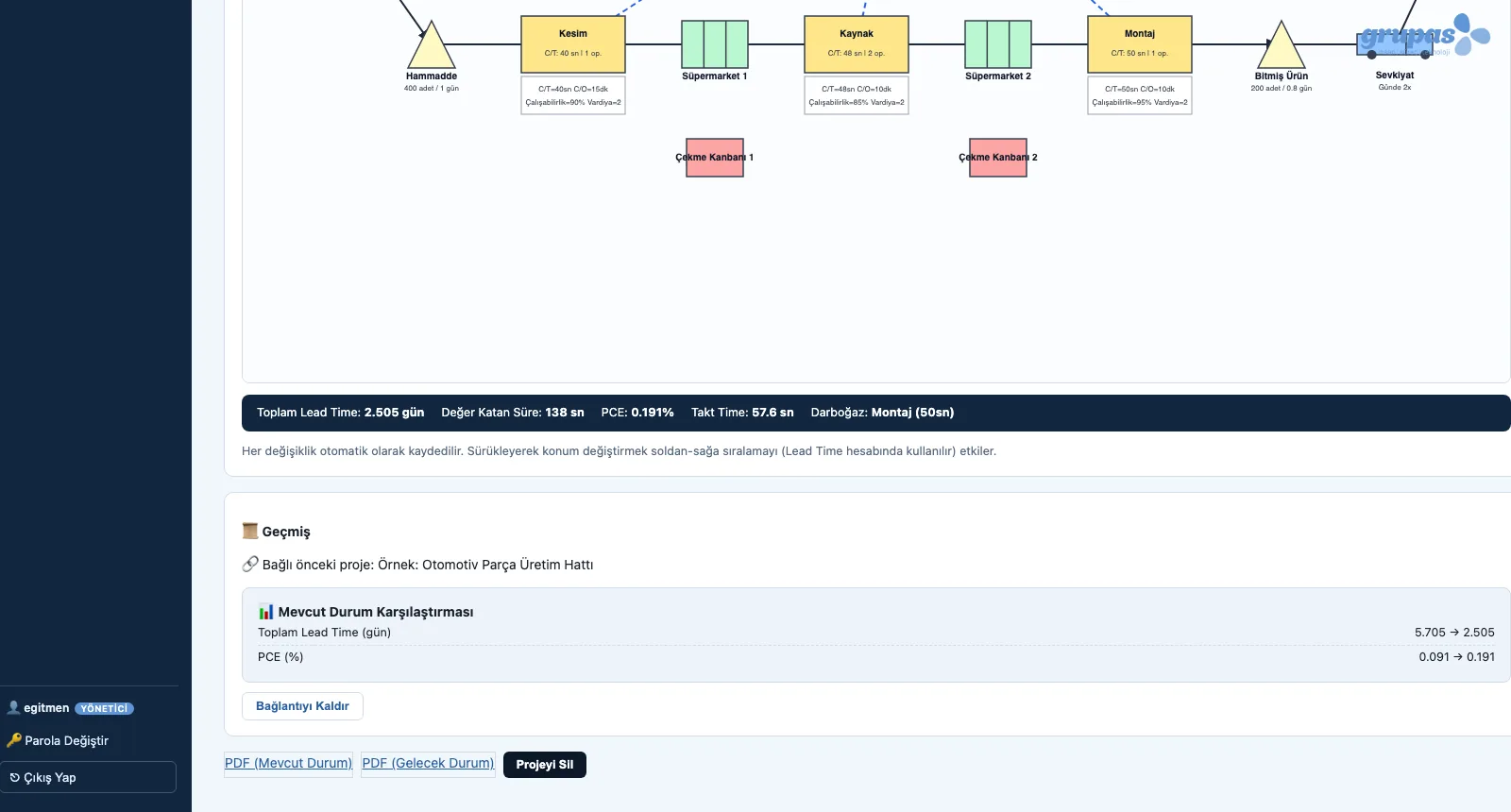
3. Compare with the future stateThe same metrics are recalculated on the future-state map; the change in lead time and PCE reads directly.

KPI · Explore

AI · Analyze

AI Waste Analysis

From the map to a prioritized improvement list.
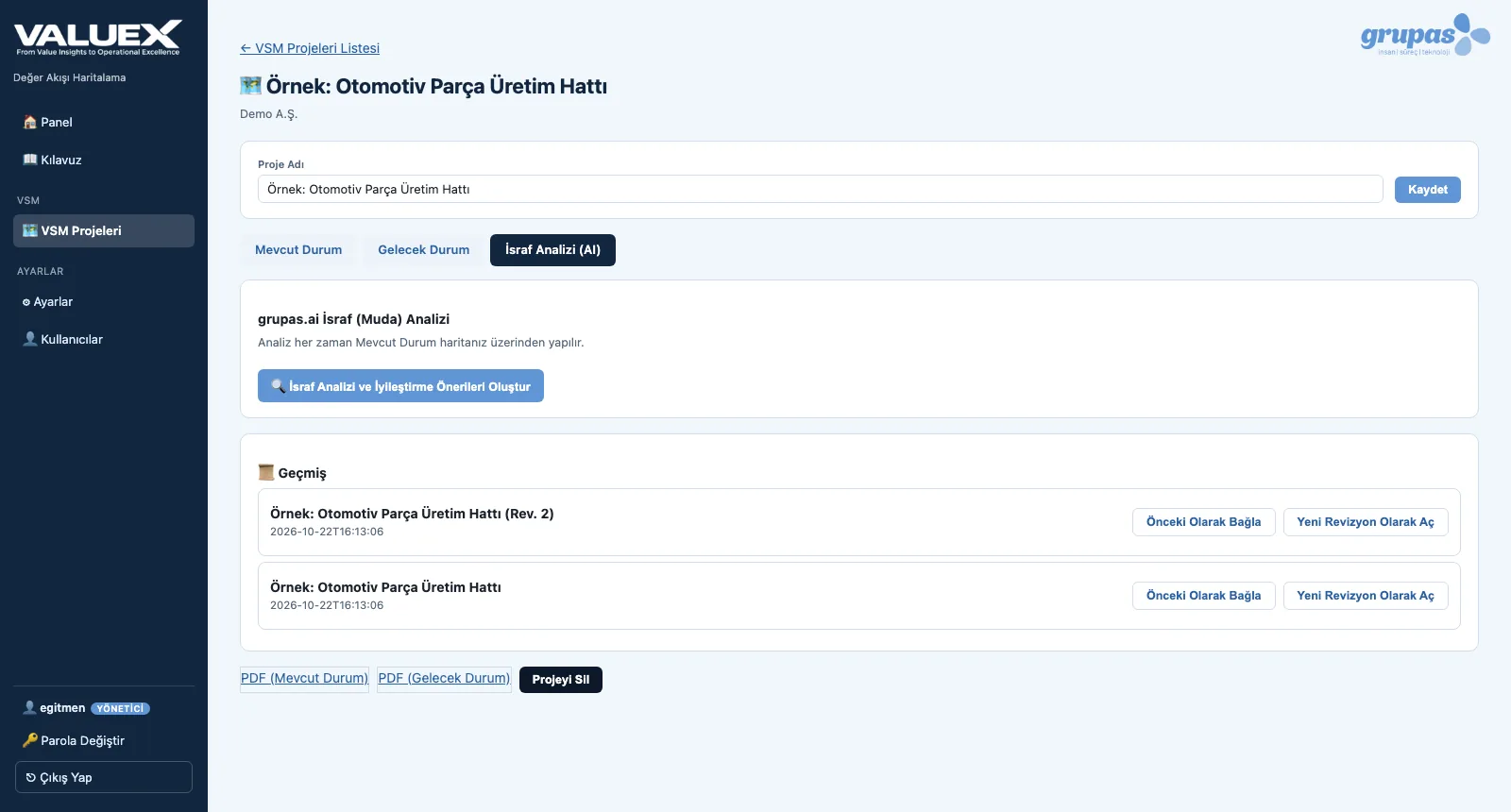
AI — Know the 7 wastes
1. Know the 7 wastesOverproduction, waiting, transport, over-processing, inventory, unnecessary motion and defects — with examples in the guide.
AI — Start the analysis
2. Start the analysisOn the Waste Analysis (AI) tab, send your current-state map for assessment with one button.

AI · Explore

FSM · Design

Future-State Design

Copy the current state, put the improvements on the map, measure the gain.
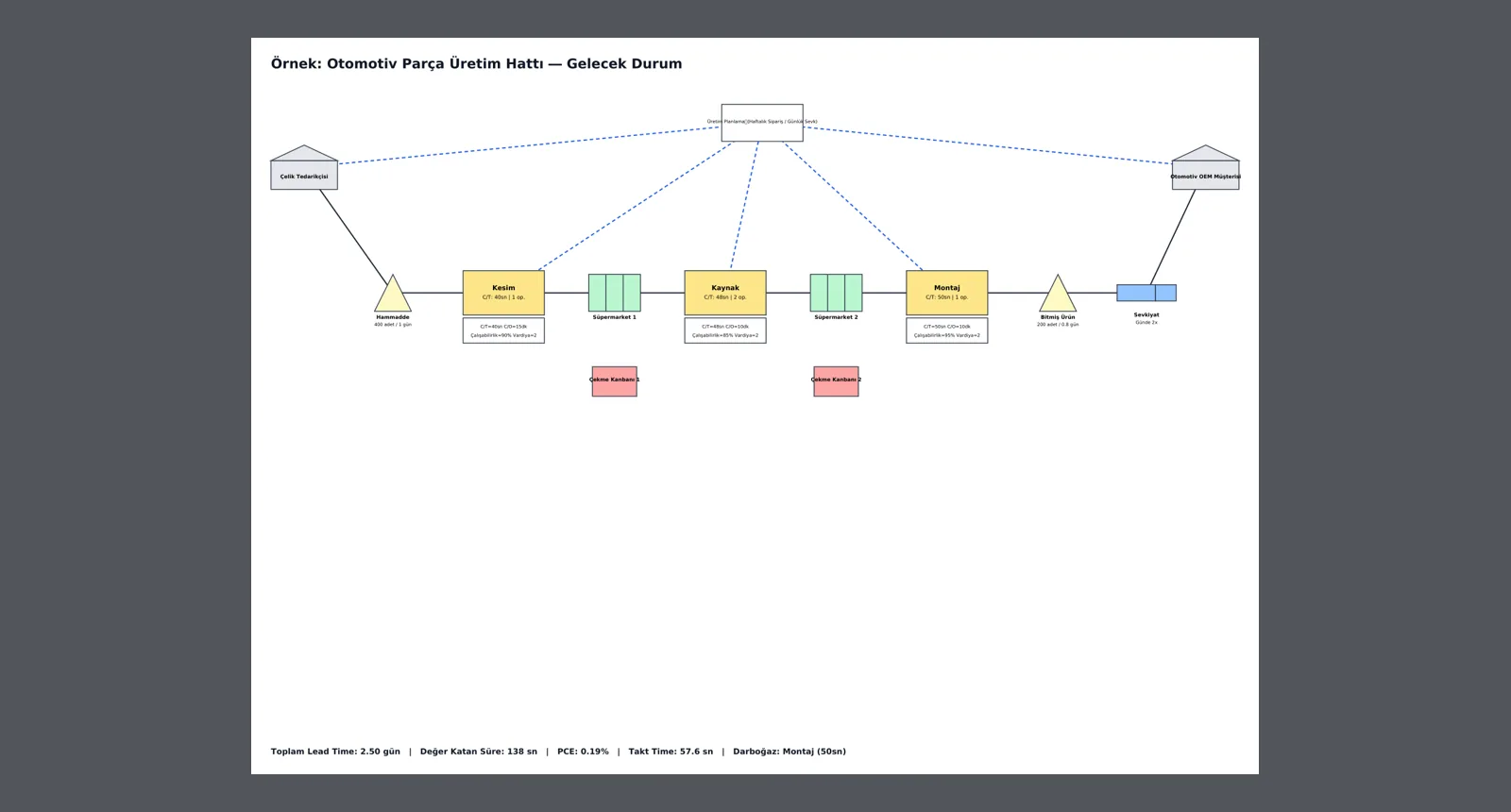
FSM — Start from a copy
1. Start from a copyOn the Future State tab, take a copy of the map with 'Start from current state'; reduce inventory, add supermarkets and kanban.
FSM — Share the target map
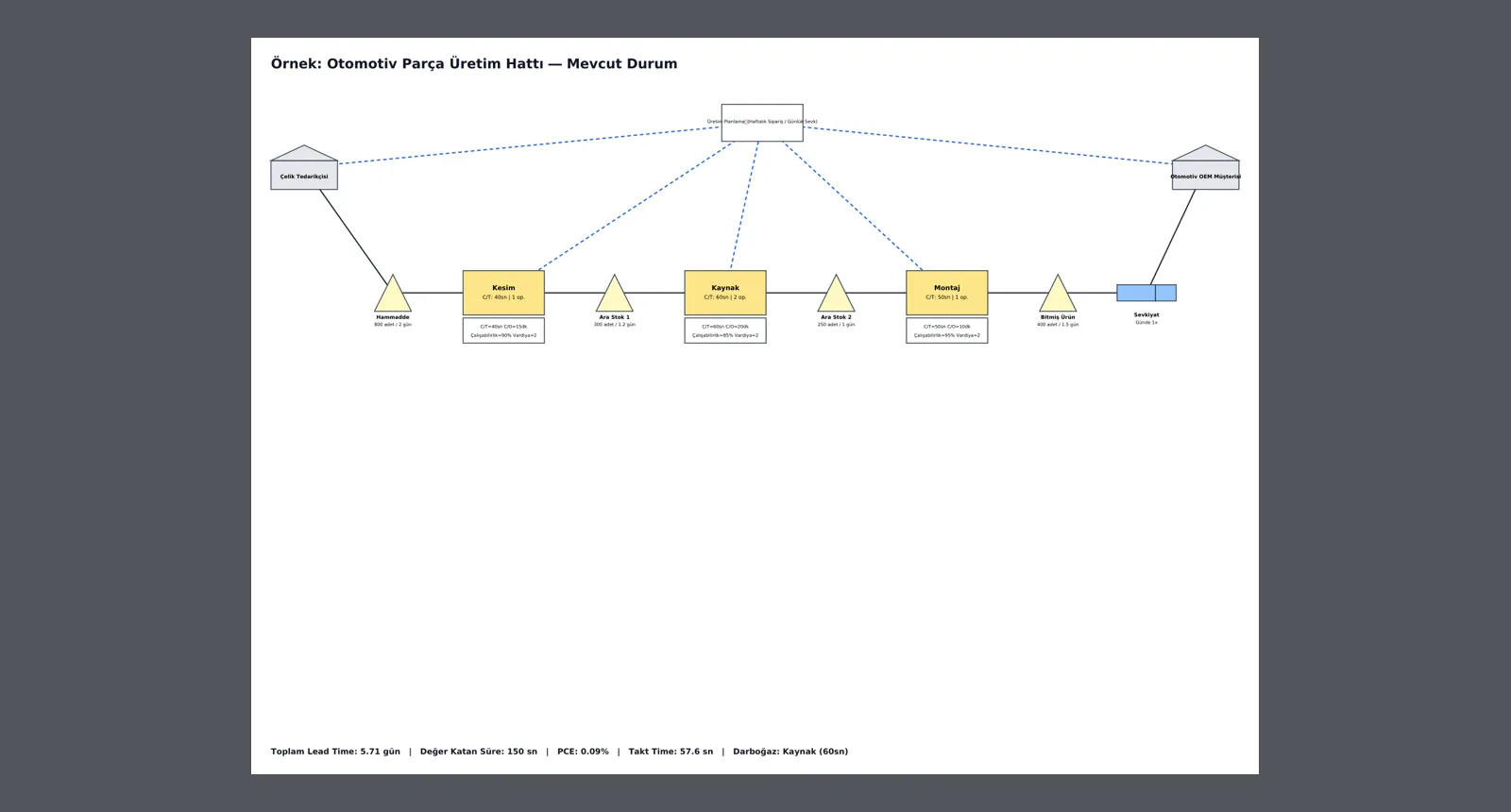
2. Share the target mapDownload the future-state map as a vector PDF identical to the screen and share it with the team or management.

FSM · Explore

REV · Compare

Revisions and Comparison

From one study to the next: open a revision, link, compare.
REV — See the projects
1. See the projectsAll VSM projects and revisions of the company are listed with dates.
REV — Open a new revision
2. Open a new revisionOnce improvements are in place, map the current flow as a new revision.
REV — Compare
3. CompareLink the project to the previous one; before → after values of lead time and PCE appear side by side.

REV · Explore

PDF · Share

Reports and Sharing

One step from map to document.

PDF — Download the current state
1. Download the current stateFrom the project page, get the map with its metrics summary as a vector PDF via 'PDF (Current State)'.
PDF — Download the future state
2. Download the future stateGet the target map in the same format via 'PDF (Future State)'; the two documents can be presented side by side.

PDF · Explore

See your value stream in VALUEX

Write to us for a live walkthrough on sample data.

WhatsApp
GURU

GURU · VALUEX assistant

Ask about features, licenses and value stream mapping.

+90 538 390 29 78 info@grupas.com.tr
Hi, I'm GURU! I can answer your questions about VALUEX and value stream mapping (current / future state, lead time, PCE, the 7 wastes).